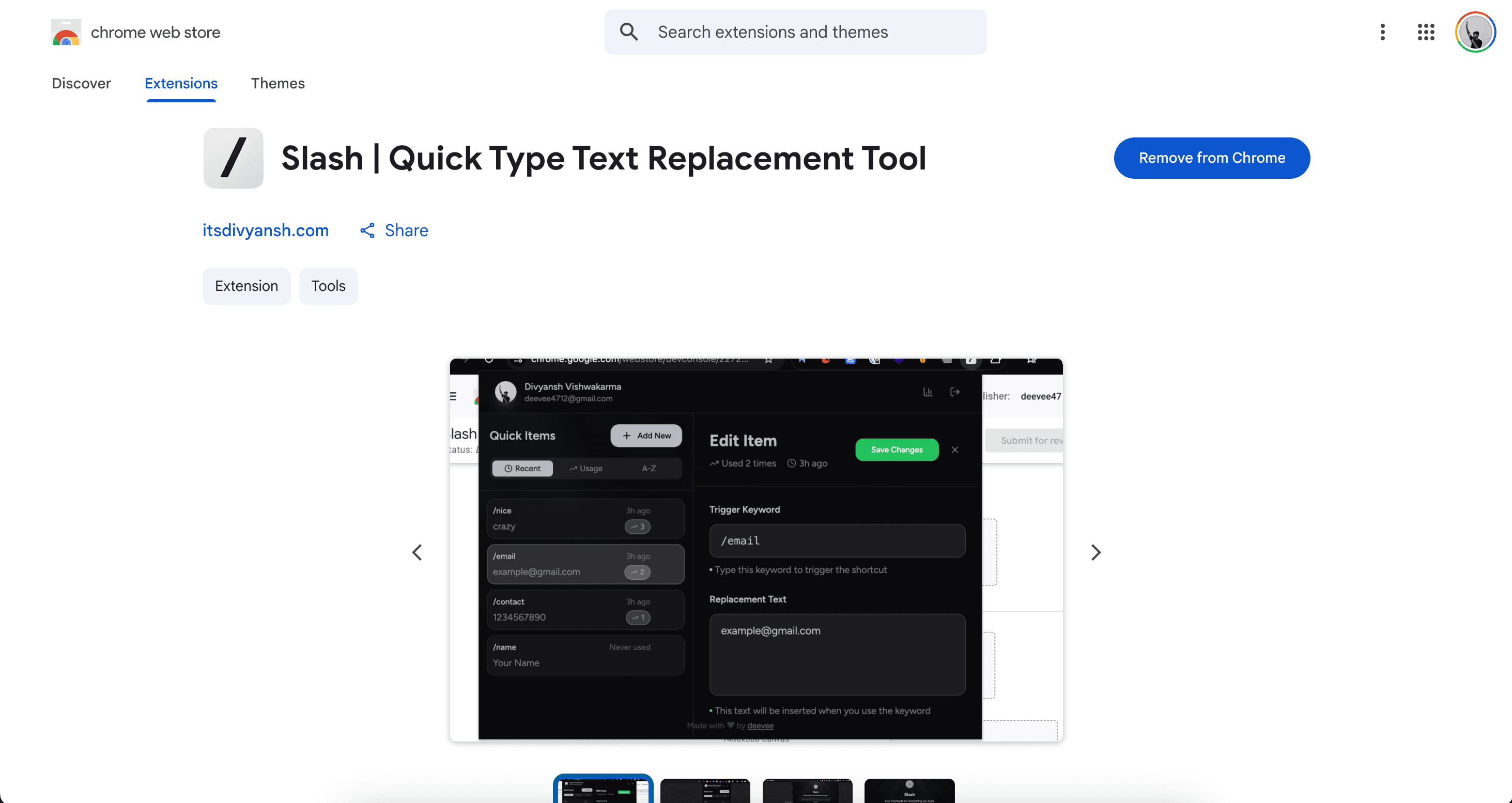
Slash | Quick Type Text Replacement Tool
Slash is a fast and secure Chrome extension that lets you expand short /shortcuts into full text instantly. no copy, no paste, no switching tabs.
Timeline
1 week
Role
Full Stack
Team
Solo
Status
CompletedTechnology Stack
Key Challenges
- Google OAuth breaking after Chrome Web Store publish due to extension ID change
- Detecting slash commands reliably across all input types on any website
- Service worker termination causing auth state loss in Manifest V3
- Text insertion into React-controlled inputs and contenteditable elements
- Chrome sync storage 100KB limit per item requiring smart data chunking
Key Learnings
- Chrome extension publishing flow and OAuth credential setup
- Manifest V3 service worker lifecycle and how to work around its limits
- Handling diverse DOM input types for reliable text injection
- JWT refresh token rotation with short-lived access tokens
- Building a popup UI that feels snappy despite extension constraints
Slash | Quick Type Text Replacement Tool
Overview
Slash is a Chrome extension that lets you define short commands and expand them into full text anywhere you type on the web. Type /email, hit space, and it becomes your full email address. Type /reply and your canned response is ready to go — no switching tabs, no copying, no pasting.
I built it because I was tired of typing the same things over and over. My email, my address, my standard reply messages — all things I type daily. The idea is simple: you set up shortcuts once, and Slash does the rest everywhere you go.
What It Does
- Type a
/shortcutin any text field and it expands instantly - Works on emails, forms, chat apps, docs, dashboards — anything
- Google login to keep your shortcuts synced across devices
- Track how often each shortcut is used
- Manage, edit, and delete shortcuts from a clean popup
Example:
/email → [email protected]
/reply → Thanks for reaching out! I'll get back to you shortly.
/addr → your full mailing address
Technical Breakdown
Extension (Frontend)
Built using Plasmo, which is a framework on top of the raw Chrome Extension API. It handles a lot of the boilerplate — hot reload during development, cleaner file structure, TypeScript support out of the box. Without it, extension development feels like writing in 2010.
The popup UI is a React + TypeScript app. Nothing fancy — a list of shortcuts, an add form, usage count. Kept it minimal intentionally.
For text injection, a content script runs on every page and listens for keydown/input events. When it detects a / followed by a known shortcut and then a space, it replaces the typed text with the expanded value.
Chrome's storage.local is used for caching shortcuts locally so the extension works even without network.
Backend
- Node.js + Express.js — REST API for CRUD on shortcuts and user data
- MongoDB — stores shortcuts, user profiles, usage metadata
- JWT authentication — short-lived access tokens + refresh token rotation so sessions stay alive without compromising security
- Firebase Auth — handles the Google login UI on the extension popup side, then the backend verifies the Firebase ID token and issues its own JWTs
Technical Challenges & How I Solved Them
Challenge 1: Google Login Broke After Publishing to Chrome Web Store
This one caught me off guard. During local development, the extension has a temporary ID assigned by Chrome. After publishing to the Web Store, it gets a permanent but different ID — and Google OAuth uses the extension ID as part of the redirect URI.
The result: Google login worked perfectly in dev, then completely failed in production with an unauthorized_client error.
The fix: You have to go into your Google Cloud Console OAuth credentials, add https://<your-production-extension-id>.chromiumapp.org as an authorized redirect URI, and also add the production extension ID to your Firebase project's Chrome extension OAuth config. Once I knew what was happening, the fix was a 2-minute change. Getting there took way longer.
If you're building a Chrome extension with Google login — set this up before you publish. Don't learn it the hard way.
Challenge 2: Text Injection Into Every Kind of Input
Replacing text in a plain <input> or <textarea> is straightforward. But the web is not made of plain inputs. Slack uses a contenteditable div. Gmail has its own custom editor. Many React apps use controlled inputs where directly mutating element.value doesn't trigger a re-render.
The solution involved dispatching native input events (InputEvent, Event) manually after modifying the value, which tricks React's synthetic event system into registering the change. For contenteditable elements, I had to use document.execCommand('insertText') (deprecated but still the most reliable cross-browser option) or manipulate the Selection and Range APIs directly.
Challenge 3: Manifest V3 Service Worker Gets Killed
In Manifest V3, background pages were replaced with service workers. Service workers don't live forever — Chrome can terminate them after a few seconds of inactivity. This meant auth tokens stored in memory were getting wiped mid-session.
The fix was to stop relying on in-memory state and always read from chrome.storage.local instead. Every auth check now reads from storage first. It's a small shift in thinking but it catches a frustrating class of bugs.
Challenge 4: Chrome Sync Storage Limits
chrome.storage.sync has a 100KB total limit and 8KB per item. If someone has a lot of long shortcuts, that fills up fast.
I moved to chrome.storage.local (no sync, but 10MB limit) and handled syncing server-side instead. The backend becomes the source of truth; local storage is just a cache. This also made the multi-device sync more reliable.
Performance & UX Choices
- Shortcuts are cached locally so the extension responds instantly without a network call
- The popup opens in under 100ms — no loading spinners, no flash
- Rate limiting on the API to prevent abuse
- All shortcuts are stored encrypted at rest
Who It's For
Developers, support folks, founders, students — anyone who types the same things repeatedly. If you've ever copy-pasted from a notes doc or typed your email address 10 times in a day, Slash is for you.
Be lazy. Type smart. Slash it.